I recently needed to download a YouTube video to embed in an educational PowerPoint, and ran into a lot of frustrations trying to figure out how to download. Browser extensions in 2025 seem to be iffy at best, with questionable privacy concerns. None of the older approaches work anymore.
I ended up finding yt-dlp, an unbelievably powerful command-line tool for downloading and processing YouTube videos. I have no idea how this works on Windows but on a mac, this is an excellent option for downloading video content (especially if you have familiarity with the Terminal or another shell1).
Important!
Even though yt-dlp can be used to download all kinds of video and audio, you still should not use it to download content illegally. Copyright laws and protections must be followed. To avoid copyright infringement, only download content when you own it, you are authorized to download it by the copyright holder, or you’re following Fair Use guidelines (or the equivalent copyright laws in your country).
Determining whether using a video or audio qualifies under fair use is complex and nuanced. In general, fair use includes nonprofit educational purposes or transformative purposes (i.e. remixing) and the less the copyrighted work is used (particularly as a percentage of your new work), the more likely it is to be fair.
For example, including a 30-second clip from a longer TV news broadcast (the copyrighted work) as part of a 10 minute non-profit training video (my work) is almost certainly fair use. Taking 30 minutes of a TV show and then only adding my own branding or logo is almost certainly not fair use.
If in doubt, consult with a qualified attorney. It is your responsibility to follow copyright laws.
Installation and Setup
There’s several ways to install, but the easiest in my mind is using Homebrew:
brew install yt-dlpI then set up an alias (which is easy when using zsh/oh-my-zsh):
alias ytdl='yt-dlp -f "bv*[ext=mp4]+ba[ext=m4a]/b[ext=mp4] / bv*+ba/b" --output "%(title)s.%(ext)s" --print "Downloading %(resolution)s %(dynamic_range)s" --print "after_move:Saved to %(filepath)s" --progress -t mp4'Usage
This alias mkes actually downloading a video ridiculously easy. Here’s the command:
ytdl https://www.youtube.com/watch?v=Zh00VsnzREEHere’s what this looks like in practice:
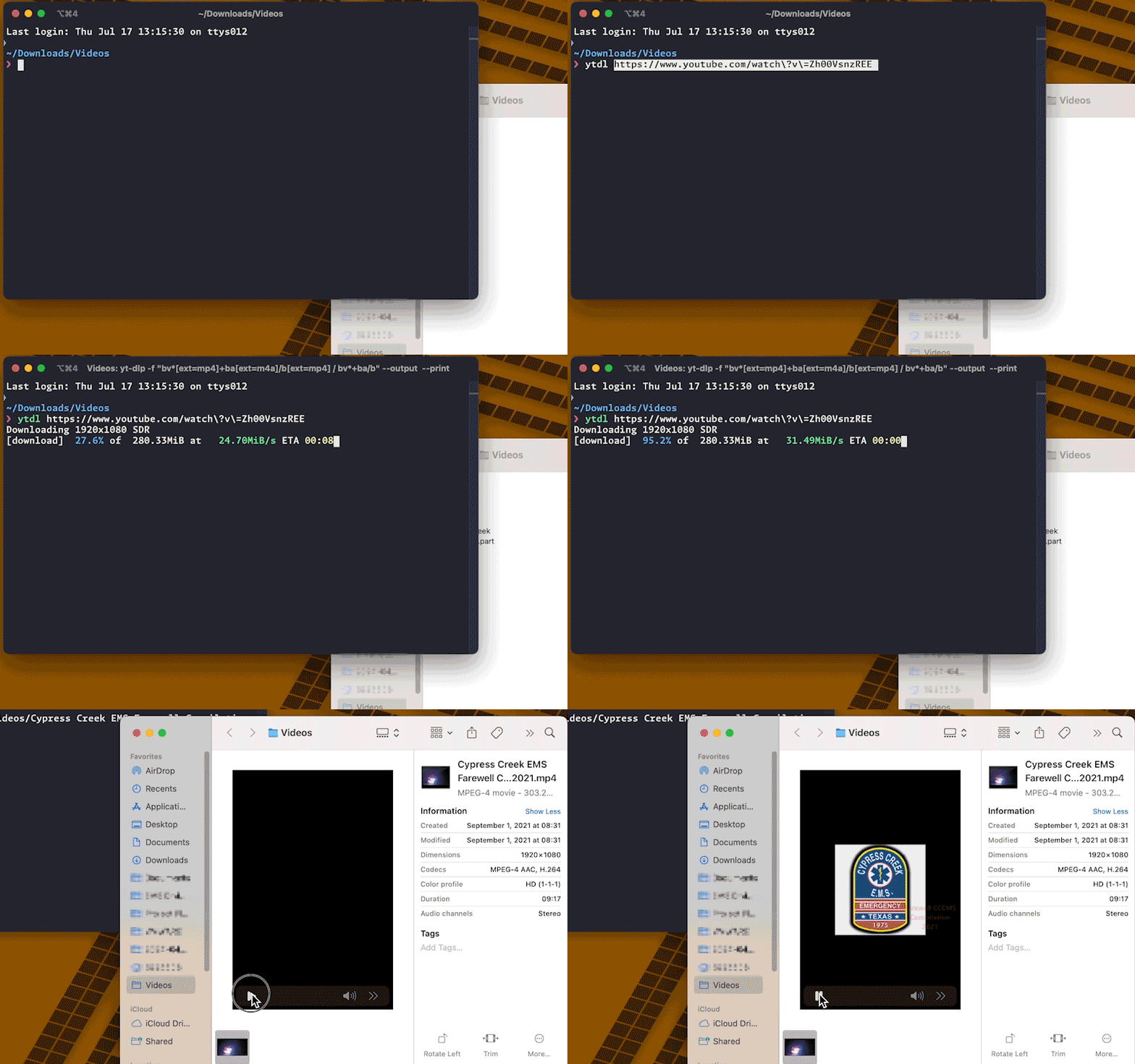
Details
yt-dlp has an absolutely insane number of options and configuration settings. Seriously—this is a pro-level tool with more capabilities than most people will ever scratch the surface. The alias above pulls in the key options to accomplish my goal of simply downloading a high-quality video that is immediately usable.
- -f sets the filters which define what version or quality of the audio and video to download. The filter string looks for the best quality mp4 video and best quality m4a audio; or if that’s not available, then the best quality format is chosen. The video and audio are usually downloaded separately and combined after downloading.
- –output provides a template for the filename; here its just the video title and extension.
- –print provides useful output in the terminal. First it prints out the resolution and dynamic range (handy for validating what quality video was downloaded); second, it prints out the file name of the final video.
- –progress ensures the progress bar is output in the terminal
- -t mp4 is a preset alias that sets the output format to be an mp4 video using the h264 video codec and aac audio codec. This is a solid general purpose video format.
Overall—this is such a great tool. And I’ve barely scratched the surface here. I can see lots of potential for powering data analysis with the other download options. And lots of potential for automation as well.